
GroOps for HubSpot
Installation, Company grouping, matching rules, record review, bulk editing, merging, parent-child associations, optional Google Places enrichment and location discovery, automatic merge rules, workflow automation, billing, data processing, troubleshooting, and support.
Product overview
GroOps is a HubSpot-native Company data management application for finding related Company records, reviewing them together, correcting data, merging duplicates, building parent-child structures, and optionally using Google Places to discover or enrich physical locations.
HubSpot remains the system of record for Company records and Company associations. GroOps provides an operational workspace and automation layer that reads Company data, presents related records together, and writes approved changes back to HubSpot.
Current production capabilities
Find and review related Companies
Group Company records by a HubSpot Company property, review matching records together, and use exact or configurable similarity matching for supported text properties.
Clean up records in place
Edit individual records, bulk edit selected records, merge selected Companies into a chosen primary record, and associate selected Companies to a parent Company.
Optional location data
Connect your own Google Places API key for Company enrichment, external location search, parent discovery, and the Google address workflow action.
Exact-match automatic merging
Build record-retention and exact-match criteria, optionally allow blank values during matching, preview duplicate groups without changing data, run the saved rule manually, and schedule future daily or weekly runs.
Requirements and installation
Requirements
- A HubSpot account where the GroOps Marketplace app can be installed.
- A HubSpot user permitted to authorize Marketplace applications.
- Company records available in the connected HubSpot account.
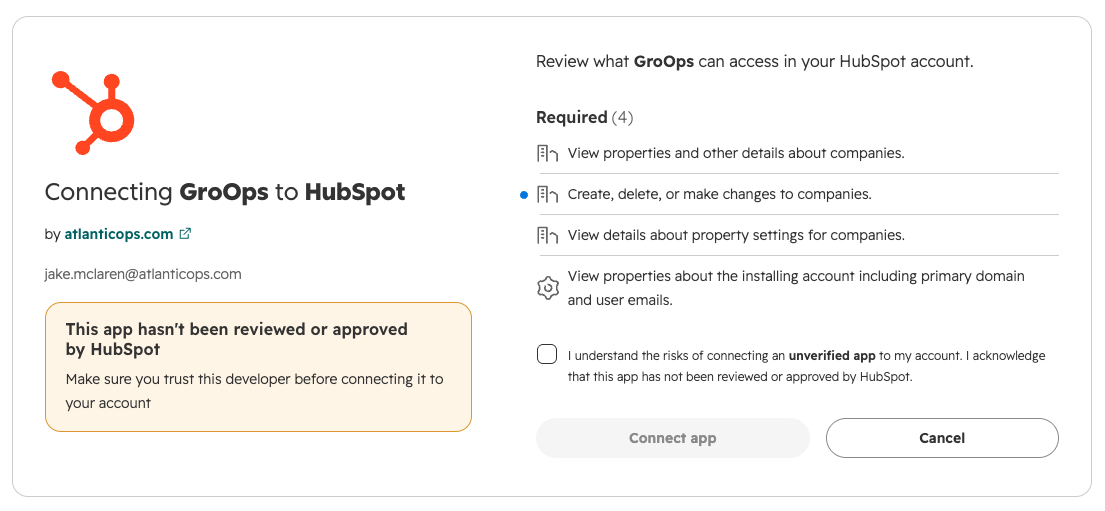
- Authorization for GroOps to read Company records, update Company records, and read the Company schema.
- An active GroOps entitlement for paid actions where indicated in the application.
- A Google Places API key only if you want to use the optional Google-powered features.
Install GroOps
- Start the GroOps installation from Atlantic Ops or the HubSpot App Marketplace.
- Select the HubSpot account where GroOps should be installed.
- Review the requested OAuth permissions.
- Approve the installation.
- Open GroOps from HubSpot and confirm the Groups page loads.
- Open GroOps settings to review Billing, Google Places, and Rules.
GroOps actions use the permissions granted to the installed Marketplace application. Only users authorized by your organization to change Company data should be given operational access to GroOps.
Plans and billing
GroOps billing is based on the number of Company records in the connected HubSpot account. All paid plans include the full GroOps feature set.
| Plan | Company records | Monthly | Annual |
|---|---|---|---|
| Free | 5 groups | $0 USD | $0 USD |
| Starter | 0–25,000 Companies | $49 USD / month | $490 USD / year |
| Growth | 25,001–100,000 Companies | $99 USD / month | $990 USD / year |
| Scale | 100,001+ Companies | $249 USD / month | $2,490 USD / year |
Annual billing is priced at ten months of the corresponding monthly plan. Subscription checkout and billing management are handled through Stripe.
If you connect Google Places, Google API usage is billed directly to your Google Cloud account. It does not change your GroOps subscription price.
Company Groups
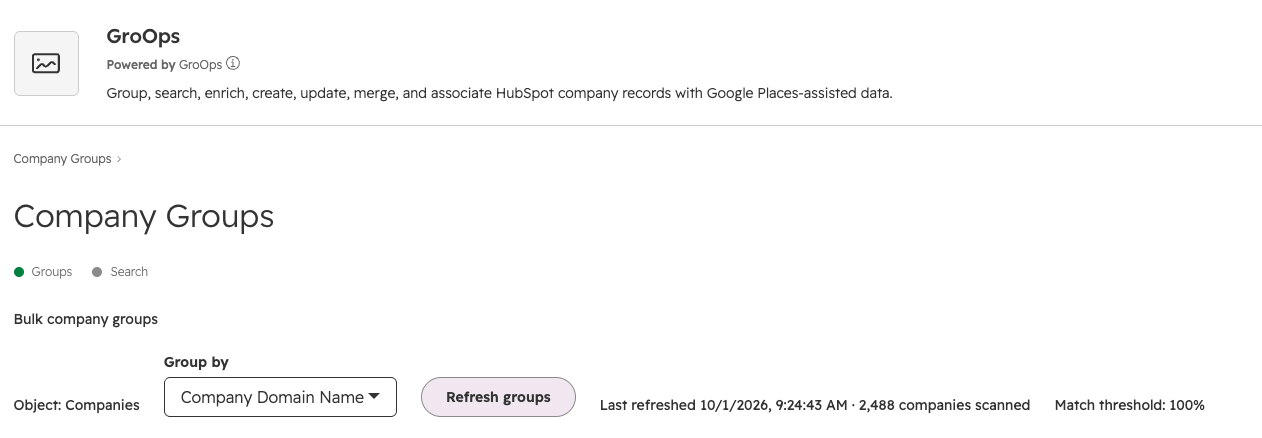
The Groups page organizes HubSpot Company records by a selected Company property so related records can be reviewed together.
- Open GroOps and select Groups.
- Choose the Company property in Group by.
- Select Build groups to scan Company records.
- Review the grouped property value and the number of records in each group.
- Expand a group to review the individual Company records.
- Use Refresh groups when you want GroOps to rebuild the saved grouping results from current HubSpot data.
GroOps stores the most recently built group results so the workspace can load previously generated groups without rescanning the full Company database on every visit. The page shows when the groups were last refreshed and how many Company records were scanned.
Expanded group view
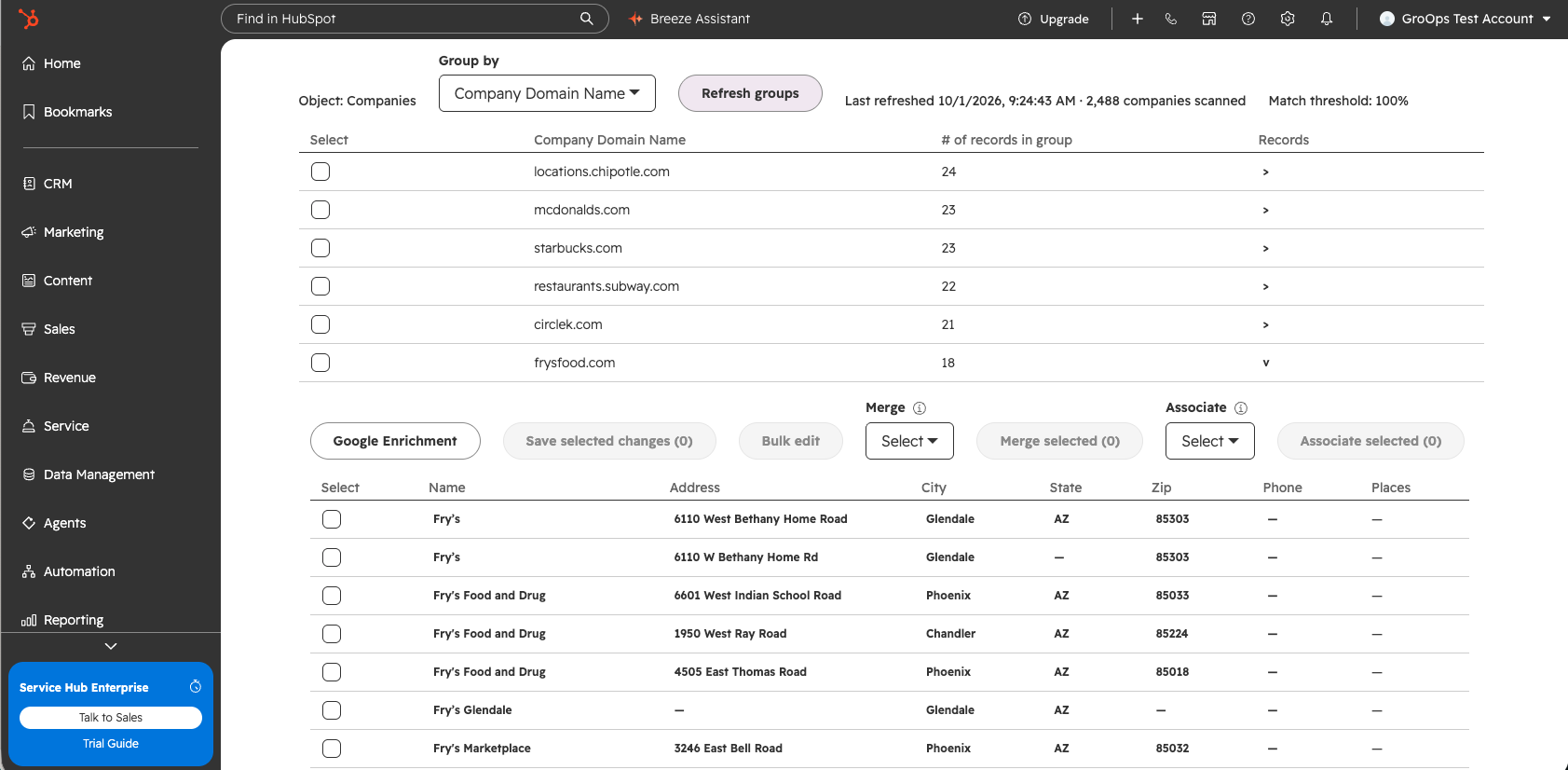
An expanded group can display Company name, domain when similarity matching is active, street address, city, state or region, postal code, phone, and Google Places information where applicable.
Merge, bulk edit, save, and association actions operate on the Company records selected inside the expanded group. Review the selected rows before applying an action.
Group matching
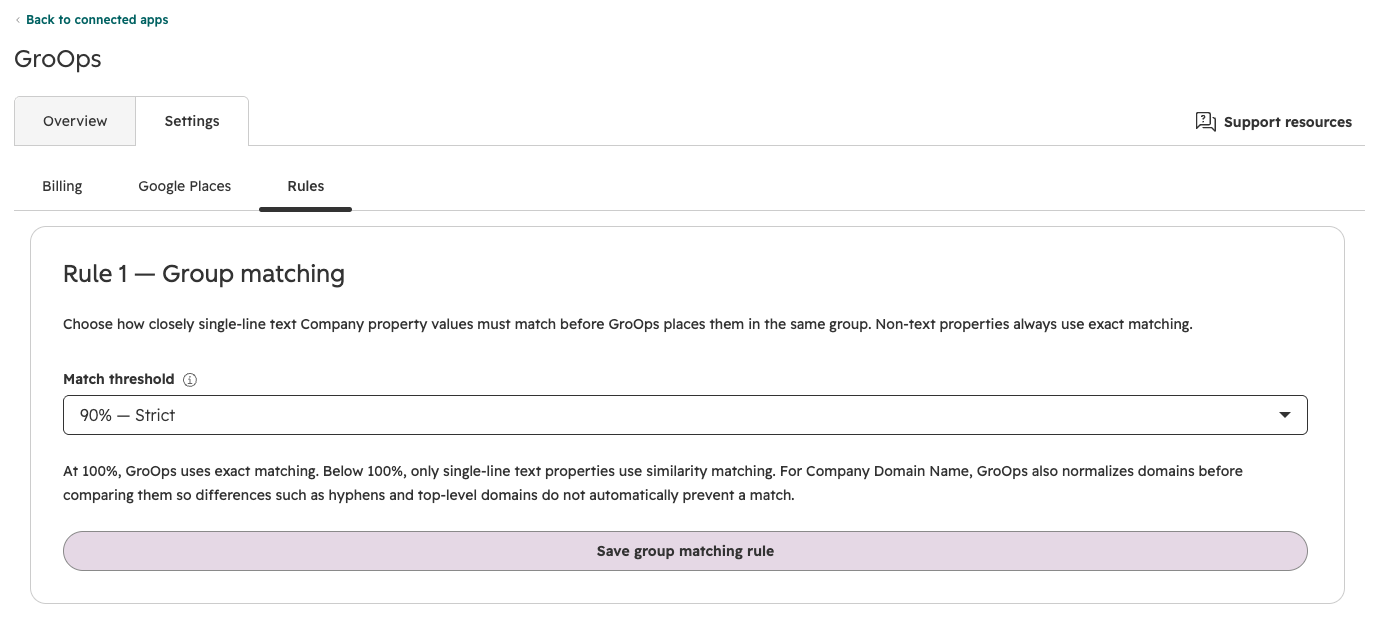
Group matching is configured in GroOps settings → Rules → Rule 1 — Group matching.
Match threshold
| Threshold | Behavior |
|---|---|
| 100% | Exact match. |
| 95% | Very strict similarity matching. |
| 90% | Strict similarity matching. |
| 85% | Moderate similarity matching. |
| 80% | Broad similarity matching. |
| 75% | Broader similarity matching. |
| 70% | Widest available similarity matching. |
Similarity thresholds below 100% apply only to supported single-line text properties. Non-text Company properties always use exact matching.
Company Domain Name matching
When Company Domain Name is grouped below 100%, GroOps normalizes the domain before comparison. Protocol, www, punctuation, common top-level domain differences, and similar formatting differences do not automatically prevent records from being grouped.
When a group was created with a threshold below 100%, the expanded record table includes the Company Domain Name so users can see the values that led to the similarity match.
Group matching helps surface records for review. Automatic merge uses its own separate 100% exact or normalized-exact criteria.
Review, edit, merge, and associate
Edit Company data
In an expanded group, the following fields can be edited directly from the GroOps table:
- Company name.
- Street Address.
- City.
- State/Region.
- Zip/Postal Code.
- Phone.
Select a cell to edit one value, or select multiple Company rows and use Bulk edit to apply one value to all selected records. Edits are staged in the table until Save selected changes is used.
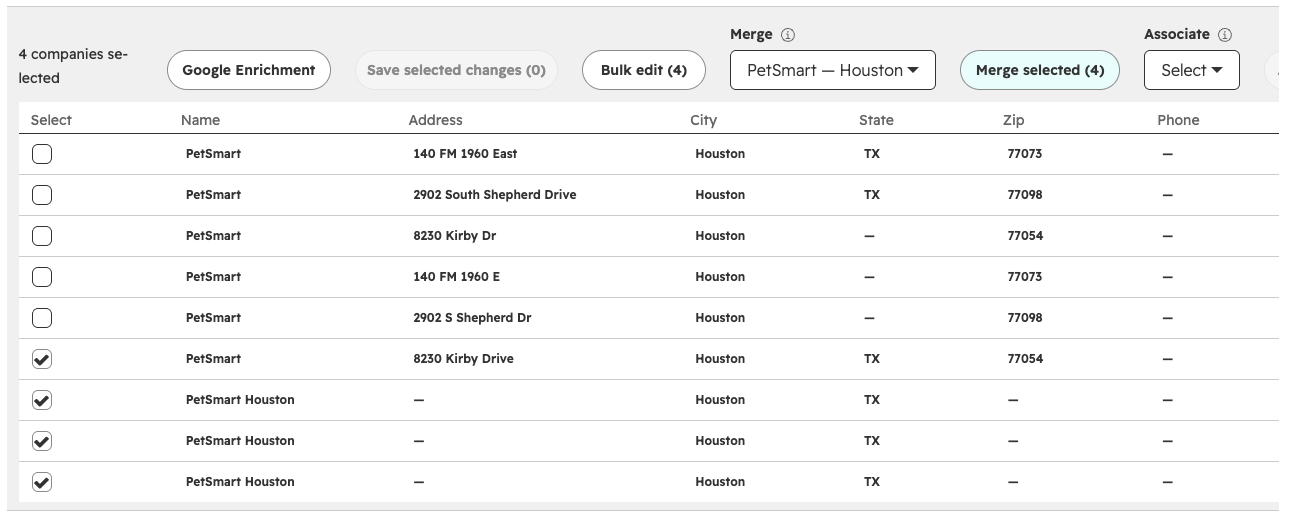
Merge selected Companies
- Select at least two Company records in the expanded group.
- Choose the Company that should remain from the Primary selector.
- Select Merge selected.
- GroOps merges the other selected records into the chosen primary Company.
Associate selected Companies to a parent
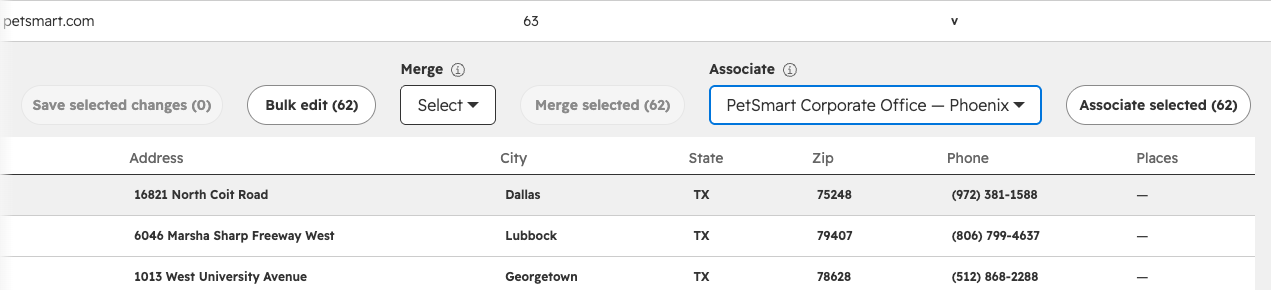
- Select the Company records that should become children.
- Choose the parent Company from the Associate selector.
- Select Associate selected.
Choosing a parent does not associate every record in the group. GroOps applies the parent-child association only to the selected child records.
Optional Google Places setup
Google Places is optional. Core HubSpot grouping, manual editing, merging, and associations do not require a Google API key.
Connecting Google Places enables external Company/location discovery, Google enrichment across Company Groups, Google-assisted parent discovery, and the Update company address with Google workflow action.
Create or locate the correct API key
- Open Google Cloud Console and select the project you want to use for GroOps, or create a new project.
- Confirm that a billing account is connected to the project.
- Enable Places API (New) for the project.
- Open APIs & Services → Credentials and choose Create credentials → API key.
- Edit the key. Under Application restrictions, choose None. Under API restrictions, choose Restrict key and leave only Places API (New) selected.
- Save the key in Google Cloud, copy it, then open GroOps settings → Google Places, paste the key, and choose Save & Test.
Confirm that Places API (New) is enabled for the key's Google Cloud project. The key cannot be restricted to websites or HTTP referrers because GroOps uses server-to-server Google Places requests.
Key storage
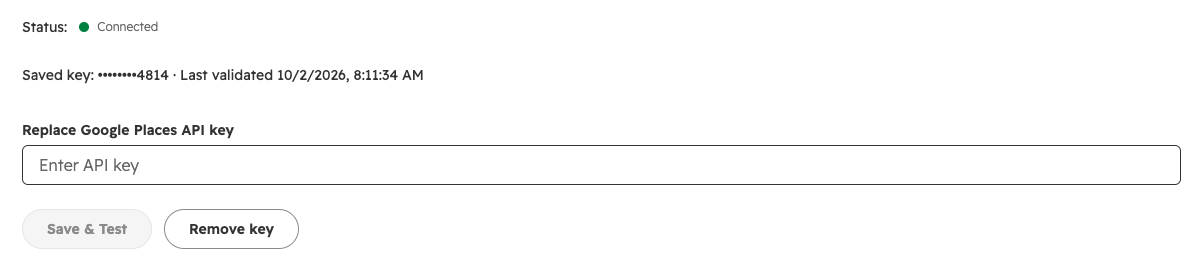
The Google Places API key is stored by the GroOps backend in encrypted form. The settings page displays only the last four characters and the most recent validation time. You can replace or remove the saved key from GroOps settings.
Google enrichment in Groups
When a Google Places API key is configured, expanded Company Groups include a Google Enrichment action regardless of which supported Company property was used to build the group.
- Build or open a Company group using any supported Group by property.
- Expand the group.
- Select Google Enrichment.
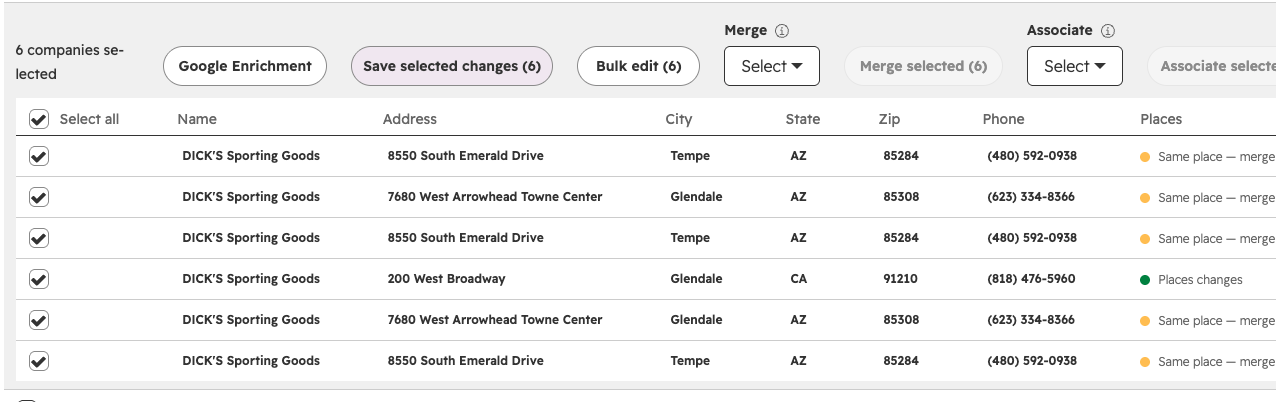
- GroOps searches Google Places for the Companies in the group.
- Matched Google values are staged in the editable table and changed records are selected.
- Review the proposed values and record selections.
- Select Save selected changes to write the approved changes to HubSpot.
Google enrichment can propose changes to Company name, street address, city, state or region, postal code, and phone when Google returns those values.
Running Google Enrichment does not immediately overwrite HubSpot Company properties. The proposed values are placed in the table for review and are written only when selected changes are saved.
Google Places location search
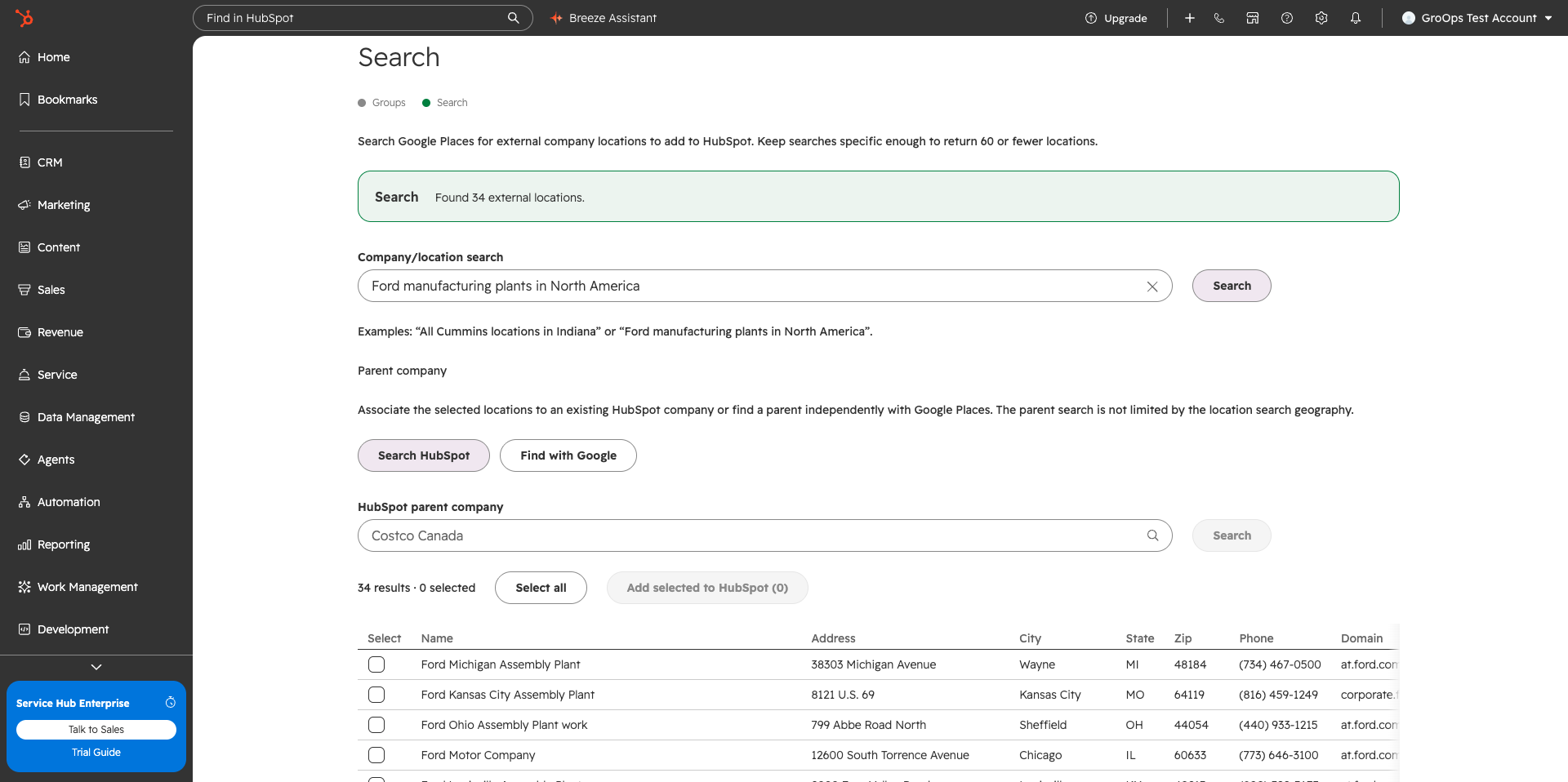
The Search page uses Google Places to find physical Company locations that are not limited to the records already stored in HubSpot.
Search for locations
- Open GroOps and select Search.
- Enter a specific Company/location query such as “All Cummins locations in Indiana”.
- Select Search.
- Review the returned locations and select only the records you want to add.
- Optionally choose a parent Company.
- Select Add selected to HubSpot.
Searches must return 60 or fewer locations. If more than 60 locations match, GroOps asks you to refine the query using a more specific Company, facility type, or geography.
Choose a parent Company
Before adding selected locations, you can search HubSpot for an existing parent Company or use Google Places to find a parent independently from the original location-search geography.
If a Google Places parent is selected, GroOps checks for an exact matching HubSpot parent before creating a new parent record. The selected locations are then associated to the chosen or created parent.
Search results are not automatically created in HubSpot. Select the locations you want, review the optional parent, and then use the add action.
Google address workflow action
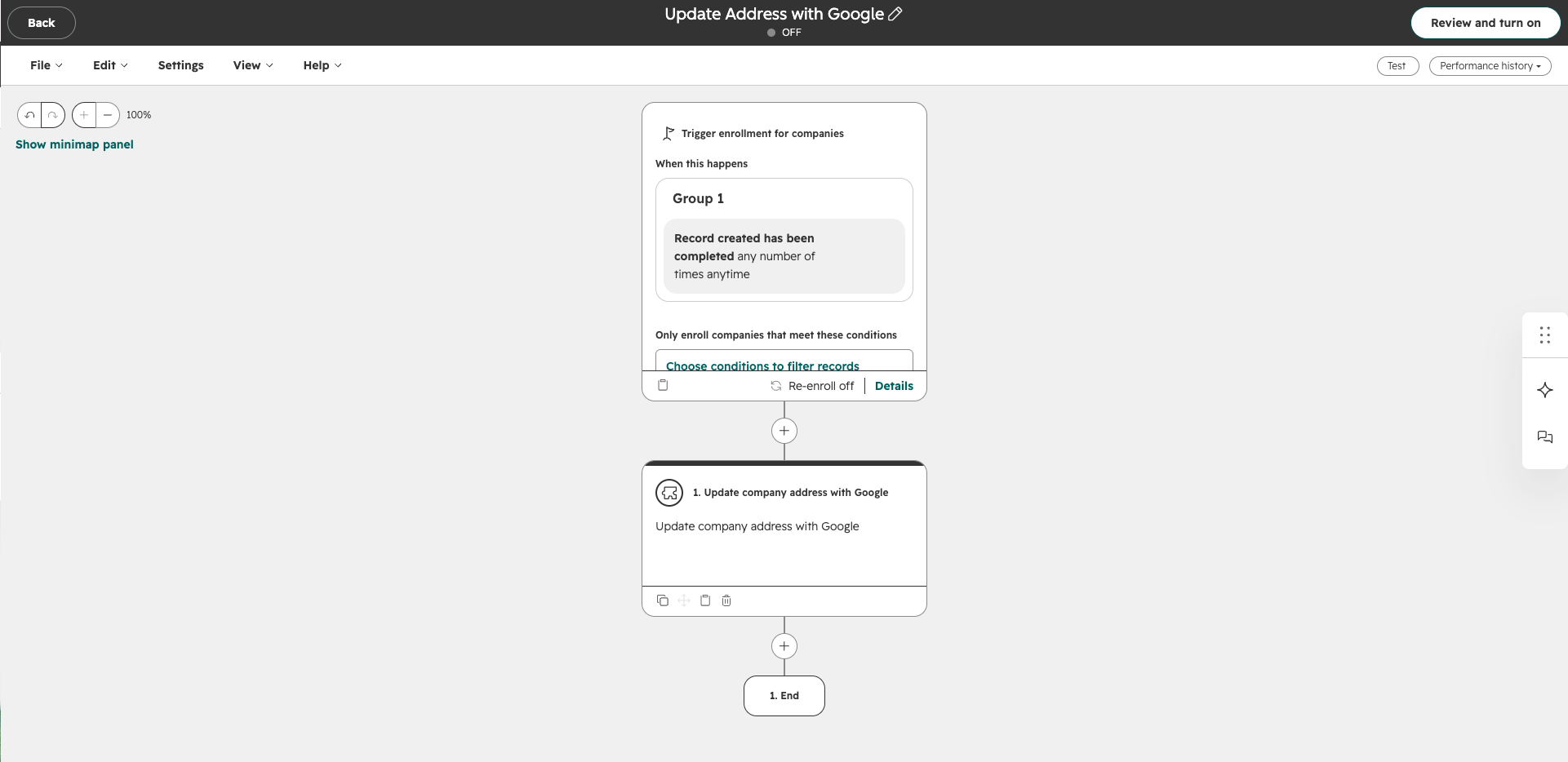
GroOps publishes a Company-based HubSpot workflow action named Update company address with Google.
The action searches Google Places for the enrolled Company and, when an acceptable match is found, overwrites the following HubSpot Company properties with the structured Google values returned:
- Street Address.
- City.
- State/Region.
- Zip/Postal Code.
A successful match writes the Google address values directly to the enrolled HubSpot Company. Use workflow enrollment criteria that fit your data-governance process.
Workflow outputs
| Output | Meaning |
|---|---|
| Result | Updated, No match, or Error. |
| Google Place ID | The matched Google Place identifier when available. |
| Updated fields | The address fields changed by the action. |
| Result message | A summary of the workflow action result. |
If Google Places does not return an acceptable match, the Company is not changed.
Automatic merge
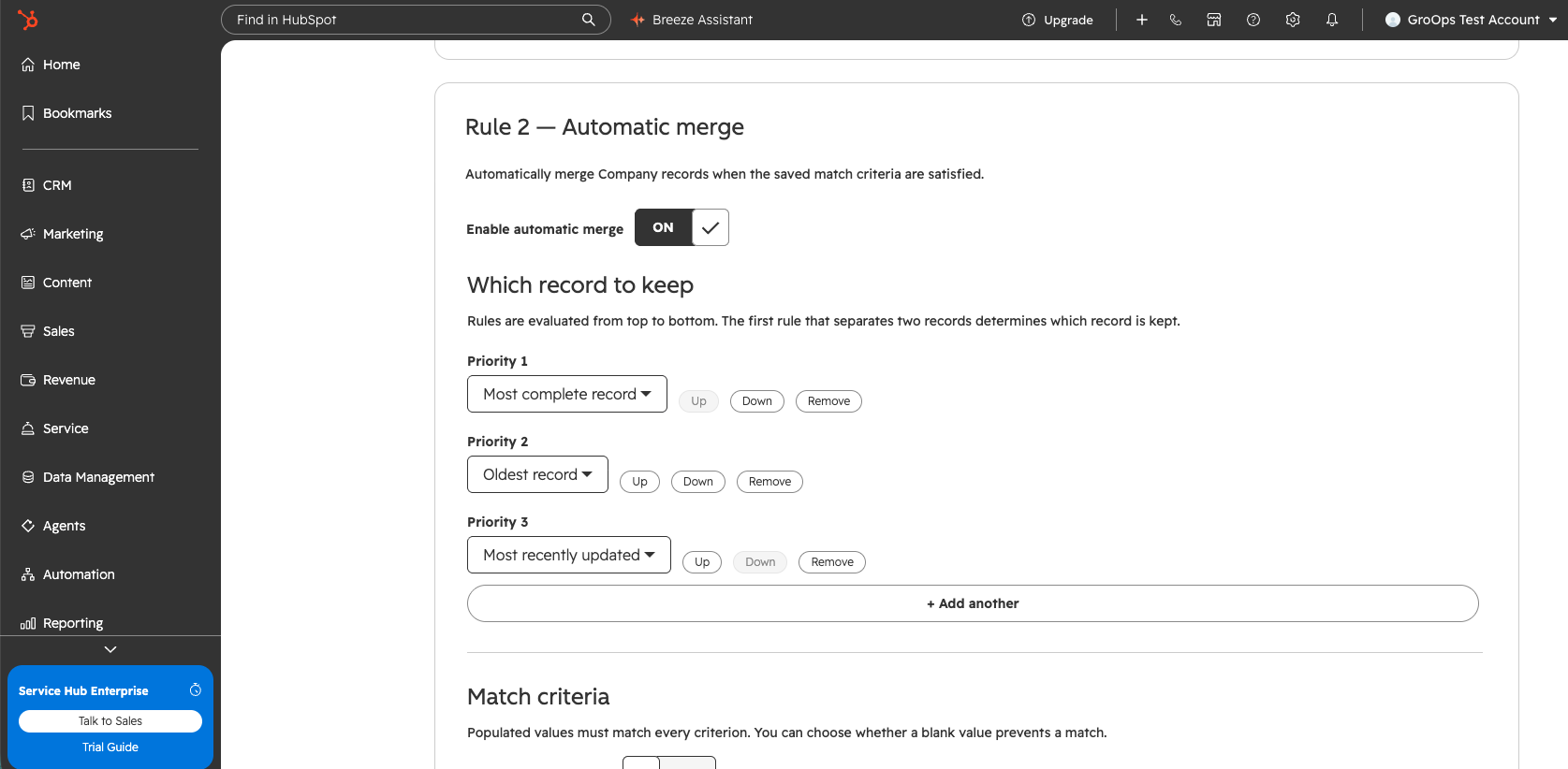
Automatic merge is configured in GroOps settings → Rules → Rule 2 — Automatic merge. It is separate from the similarity threshold used to build Company Groups.
1. Choose which record to keep
Add one or more priority rules. Rules are evaluated from top to bottom. The first rule that separates records determines which Company remains.
- Most complete record.
- Oldest record.
- Newest record.
- Least recently updated.
- Most recently updated.
- Property has a value.
- Lowest property value.
- Highest property value.
2. Define match criteria
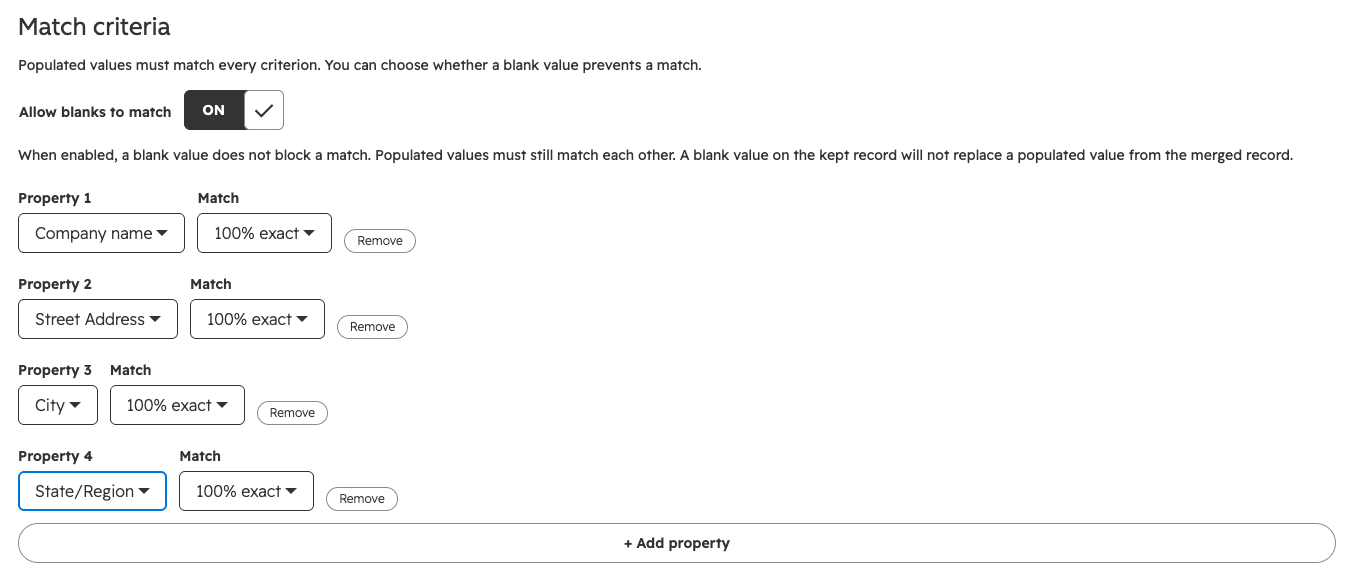
Add the Company properties that must match. Automatic merge supports only 100% exact and 100% normalized-exact criteria. Every populated value for a configured property must agree with the corresponding populated value on the other record.
| Match type | Behavior |
|---|---|
| 100% exact | Compares the stored property value directly. |
| 100% normalized exact | Ignores case, spacing, accents, and punctuation. Domain normalization also removes protocol and www. |
Automatic merge does not use fuzzy percentage matching.
Allow blanks to match
Use Allow blanks to match when a missing value should not prevent otherwise matching records from qualifying.
| Record A | Record B | Result when enabled |
|---|---|---|
| Populated value | Same populated value | Match. |
| Populated value | Blank | Match. |
| Blank | Populated value | Match. |
| Blank | Blank | Match. |
| Populated value | Different populated value | No match. |
A blank acts as a permissive value only for the configured criterion. Populated values must still match each other. If a sparse record could match multiple groups that contain conflicting populated values, GroOps does not choose a merge target automatically.
If the Company selected to remain has a blank value and a merged Company has a populated value, the populated value is retained through the merge. Enabling blank matching is intended to allow incomplete duplicates to be matched without treating missing data as a conflicting value.
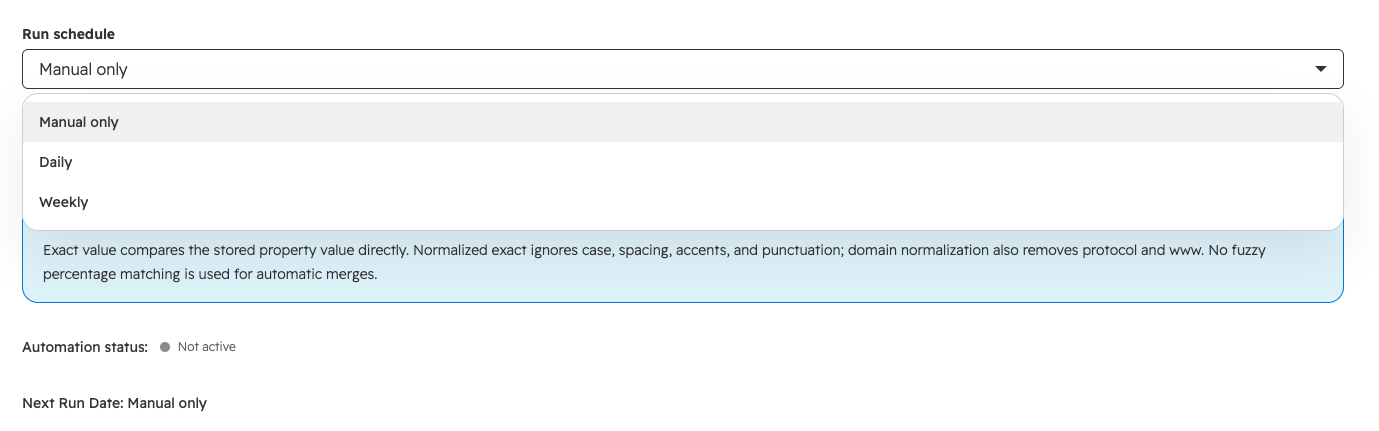
3. Choose a run schedule
- Manual only — runs only when you select Run Now.
- Daily — schedules the next run one day after the last completed run.
- Weekly — schedules the next run seven days after the last completed run.
When a recurring rule is saved and a previous completed run exists, the Next Run Date is calculated from that last run. If there is no previous run, the schedule is calculated from the time the rule is saved.
4. Save and edit the rule
- Enable the Automatic merge rule builder.
- Configure record-retention priorities, match criteria, optional blank matching, and the run schedule.
- Select Save Rule.
- The saved configuration becomes the active rule and the rule fields become read-only.
- Select Edit Rule when you need to change the saved configuration.
- Make the changes and select Save Rule again to apply them.
The action row contains Save Rule or Edit Rule, Preview, Refresh, and Run Now.
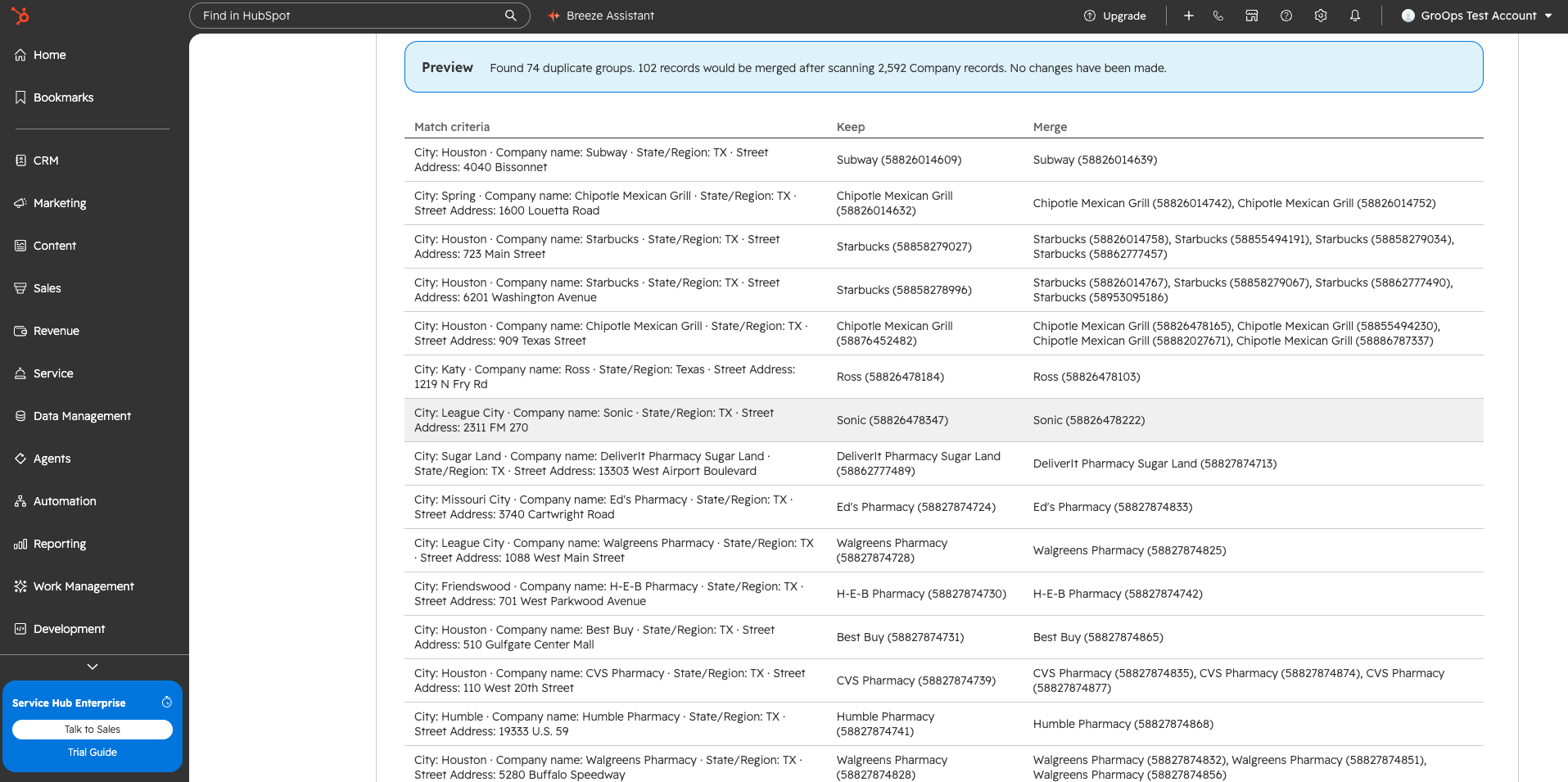
5. Preview the saved or edited criteria
Preview scans current Company records and shows the duplicate groups, records that would be merged, and total Company records scanned. It does not change HubSpot data. Preview is available as a sense-check and is not required before a manual Run Now.
6. Run the rule manually
Run Now executes the currently saved rule immediately. If you have unlocked the rule with Edit Rule and have unsaved changes, save the rule before running it. A paid GroOps entitlement is required for automatic merge execution.
Automation status
GroOps displays the automation status, last run status, last run time, number of records merged in the last run, and Next Run Date. Use Refresh to reload the current status. Turning Automatic merge off disables scheduled execution.
HubSpot OAuth permissions
The current GroOps Marketplace application requests the following required HubSpot OAuth scopes.
| Scope | Purpose |
|---|---|
| oauth | Installs GroOps and provides authenticated access to the connected HubSpot account. |
| crm.objects.companies.read | Reads Company records for grouping, matching, review, search comparison, enrichment, associations, and automation. |
| crm.objects.companies.write | Creates or updates Companies, performs supported merges, and applies supported Company associations and enrichment changes. |
| crm.schemas.companies.read | Reads the Company property schema so GroOps can present available grouping and matching properties. |
The current app configuration does not request optional or conditionally required HubSpot OAuth scopes.
Data usage and security
GroOps reads and writes only the HubSpot Company information required to provide its Company data-management features. HubSpot remains the system of record for Company records and Company associations.
| Data | Direction | Purpose |
|---|---|---|
| Company records | HubSpot ↔ GroOps | Grouping, editing, merging, associations, Google enrichment, search-created Companies, and automatic merge. |
| Company property schema | HubSpot → GroOps | Displays available properties for grouping and automatic merge rules. |
| OAuth installation credentials | HubSpot → GroOps storage | Maintains the authorized connection to the installed HubSpot account. |
| Group results and automation state | GroOps storage | Stores saved grouping results, matching settings, automatic merge configuration, previews, and run status. |
| Google Places API key | Customer → GroOps storage | Authenticates optional Google Places requests made for the connected HubSpot account. |
| Google search and Company lookup context | GroOps → Google Places | Finds physical locations and matches Companies for optional Google-powered features. |
| Subscription metadata | Stripe ↔ GroOps | Plan entitlement, billing status, billing cycle, and subscription management. |
Credential protection
GroOps stores HubSpot OAuth access and refresh tokens and customer-provided Google Places API keys in encrypted form using AES-256-GCM before they are written to application storage.
GroOps uses an Atlantic Ops application backend with PostgreSQL for application-side configuration, cache, automation, and billing metadata. Company records themselves remain in HubSpot.
Third-party services
- HubSpot — CRM source of truth and destination for Company changes.
- Google Places API (New) — optional location discovery and enrichment provider.
- Stripe — subscription checkout and billing management.
Never include HubSpot OAuth tokens, Google API keys, Stripe secrets, passwords, or other authentication credentials in a support request.
Uninstalling GroOps
Removing GroOps disconnects the Marketplace application from HubSpot. It does not reverse Company records, property values, merges, or associations that were already written to HubSpot.
Before uninstalling
- Disable Automatic merge if it is active.
- Review any remaining Google Places configuration.
- Review GroOps subscription billing.
- Confirm that no pending data-cleanup work depends on the app.
Billing
HubSpot app removal and Stripe subscription management are separate actions. Manage the GroOps subscription from the Billing tab when billing should be changed or cancelled.
Application-side data
Contact Atlantic Ops support if your organization requires deletion of GroOps application-side configuration or stored application data after uninstalling.
Troubleshooting
GroOps opens in the wrong HubSpot account or cannot load Company data
- Confirm GroOps is installed in the HubSpot account you are currently viewing.
- Reload the GroOps page.
- If the connection was removed or the OAuth installation is no longer valid, reinstall GroOps in the intended account.
No Company groups are shown
- Confirm a Company property is selected in Group by.
- Select Build groups if groups have not been created for that property.
- Select Refresh groups if the saved results are out of date.
- Confirm the selected property contains values that occur on more than one Company record.
- Review the configured group match threshold if you expected similar text values to group together.
Google Places key will not validate
- Confirm billing is enabled on the Google Cloud project.
- Confirm Places API (New) is enabled.
- Confirm the key's API restriction allows Places API (New).
- Confirm Application restrictions are set to None.
- Do not use a key restricted to websites or HTTP referrers.
- Paste the key again and select Save & Test.
Google Search says more than 60 locations matched
Refine the query with a narrower geography, facility type, or Company description. GroOps requires a search specific enough to return 60 or fewer locations.
A Google enrichment match looks wrong
Do not save that record. Google enrichment stages proposed changes in the table first, so you can deselect the record or edit the values before saving.
The Google address workflow action returned No match
- Confirm the enrolled Company has enough identifying information for a Google Places search.
- Review Company name, domain, city, state, and address information.
- Confirm the Google Places key is still connected and valid.
- No Company properties are changed when the workflow action returns No match.
Automatic merge Preview found no duplicate groups
- Confirm every Match criteria property is correct.
- Review whether Allow blanks to match should be enabled for incomplete records.
- Review whether 100% exact or 100% normalized exact is appropriate for each property.
- Remember that two different populated values never match, even when blank matching is enabled.
- Automatic merge does not use the Group matching percentage threshold.
Automatic merge is configured but not running on a schedule
- Confirm Automatic merge is enabled.
- Confirm the run schedule is Daily or Weekly rather than Manual only.
- Confirm the current configuration has been saved. A saved rule displays Edit Rule.
- Use Refresh to reload the automation status and Next Run Date.
- For Daily and Weekly schedules, the next run is calculated from the last completed run when one exists.
Run Now is unavailable
- Confirm the rule has been saved. Run Now executes the saved rule.
- If the rule is currently unlocked for editing, save the changes first.
- Confirm the connected HubSpot account has an active paid GroOps entitlement.
- Preview is optional and does not need to be completed before Run Now.
A paid action is unavailable
- Open GroOps settings → Billing.
- Confirm the connected HubSpot account has an active paid entitlement.
- Complete Stripe checkout or manage the existing subscription as needed.
- Refresh billing status after a billing change.
Frequently asked questions
Does GroOps replace HubSpot Company records?
No. HubSpot remains the system of record. GroOps reads and updates normal HubSpot Company records.
Do I need Google Places to use GroOps?
No. Google Places is optional. Company grouping, manual editing, merging, and parent-child association management can be used without a Google API key.
Does Company Group similarity matching automatically merge records?
No. Group similarity matching is used to surface records together for review. Automatic merge uses separate exact or normalized-exact rules.
Can I control which records are merged?
Yes. In a Company Group, select the records you want to merge and choose the primary Company that should remain.
Does associating a parent affect every record in the group?
No. The Associate selected action applies only to the selected child records.
Can GroOps find a parent outside the location search area?
Yes. On the Search page, the optional parent search is independent from the original location-search geography.
Does Google Enrichment immediately overwrite HubSpot data?
No. Google Enrichment stages proposed values in the Groups table. You review the records and use Save selected changes before the values are written to HubSpot.
Does the Google workflow action have the same review step?
No. The Update company address with Google workflow action writes returned address values directly when it finds an acceptable match.
Can automatic merge use fuzzy matching?
No. Automatic merge supports 100% exact and 100% normalized-exact matching only.
Does Automatic merge change records during Preview?
No. Preview only scans Company records and shows the duplicate groups and records that would be merged. It does not change HubSpot data. Changes occur only when Run Now executes the saved rule or when an enabled Daily or Weekly schedule runs.
Is Preview required before Run Now?
No. Preview is an optional sense-check. Run Now executes the currently saved rule. If the rule is unlocked for editing, save the changes before running it.
How does Allow blanks to match work?
When enabled, a blank value does not prevent a match. A blank can match a populated value or another blank, but two different populated values still do not match. Blank values do not replace populated data during the merge.
Who pays for Google Places usage?
Google API usage is billed to the Google Cloud account connected to the API key you provide.
What happens to HubSpot data if GroOps is uninstalled?
Changes already written to HubSpot remain. Uninstalling GroOps does not reverse completed edits, merges, created Companies, or associations.
Support
When contacting support, include the HubSpot account ID, the affected Company record IDs where applicable, the GroOps page or action being used, and the exact error message shown.
Do not include HubSpot OAuth tokens, Google API keys, Stripe secret keys, passwords, or other authentication secrets in a support request.
Contact Atlantic Ops support
Get help with installation, billing, Company grouping, matching rules, record editing, merges, parent-child associations, Google Places setup, location search, enrichment, automatic merge, workflow actions, or application-side data requests.